

Close Menu
  • Social Media
    • Facebook
    • Instagram
    • Snapchat
    • TikTok
    • X (Twitter)
  • Messaging
    • Kik
    • Messenger
    • Telegram
    • WhatsApp
  • Android
  • Browsers
Facebook X (Twitter) Instagram
TechfybaTechfyba
  • Social Media
    • Facebook
    • Instagram
    • Snapchat
    • TikTok
    • X (Twitter)
  • Messaging
    • Kik
    • Messenger
    • Telegram
    • WhatsApp
  • Android
  • Browsers
TechfybaTechfyba
Home » How to Change Xiaomi Control Centre Style 
Xioami

How to Change Xiaomi Control Centre Style 

In this article, you will learn how to change your notification and control centre style in Xiaomi mobiles.
Khael EkeBy Khael EkeUpdated:29 April 20232 Mins Read
Facebook Twitter Pinterest Telegram LinkedIn Tumblr WhatsApp Email
How to Change Xiaomi Control Centre Style
Share
Facebook Twitter LinkedIn Pinterest Telegram Email

Xiaomi smartphones are well-known for their customizable user interface that allows users to personalize their devices to their liking. One of the key features of Xiaomi phones is the Control Centre, which is a quick settings panel that can be accessed by swiping down from the top of the screen. 

The Control Centre provides easy access to frequently used settings such as Wi-Fi, Bluetooth, and screen brightness. 

However, some users may want to change the style or appearance of the Control Centre to better suit their preferences. In this article, we will explore how to change the Xiaomi Control Centre style.

If it’s hard for you to navigate through the Xiaomi new control centre style, and want to change it back to the old style, this article is for you. 

Table of Contents

Toggle
  • How to Change Xiaomi Control Centre Style
    • STEP 1: Settings
    • STEP 2: Notification and control centre
  • Conclusion

How to Change Xiaomi Control Centre Style

STEP 1: Settings

Open your Xiaomi phone settings. 

STEP 2: Notification and control centre

Scroll down and look for “Notification & Control Centre” or search for the control centre using the search bar.
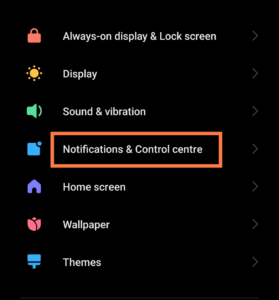
Change Xiaomi Control Centre Style


Now, click on it. Then, click on the “Control Centre Style” 
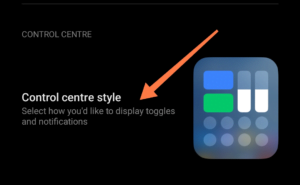
Change Xiaomi Control Centre Style


Click on the older version to switch the style and appearance. 
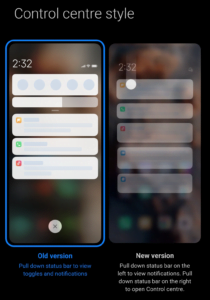
Change Xiaomi Control Centre Style


Switching to the older version will change the look and feel of your notification and how they appear. This means that your notifications will appear below the control centre. 
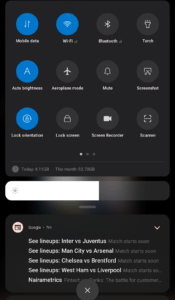
Xioami notifications


The newer version allows you to pull down the status bar on the left to view notifications and pull down the right to access the control centre. 

Conclusion

Xiaomi smartphones offer a high level of customization, including the ability to personalize the style and appearance of the Control Centre. 

By following the simple steps outlined in this article, users can easily switch between the old and new Control Centre styles based on their preferences. With this knowledge, Xiaomi users can enjoy a more personalized mobile experience tailored to their liking.

Was this article helpful?
YesNo
Android Redmi Xiaomi
Share. Facebook Twitter Pinterest LinkedIn Tumblr Email
Khael Eke
  • Website
  • X (Twitter)
  • Instagram
  • LinkedIn

Khael Eke is an experienced writer and blogger in the field of consumer technology with over 4 years of hands-on experience. He has been an editor at Techfyba.com from the outset and his focus and key interests are Android, Xiaomi products, Social Media applications, iOS and accessibility as well as consumer technology in general. Mike's articles will provide you with the practical solutions, knowledge and tools you need to stay ahead in the ever-evolving world of technology.

RECOMMEDNED

How To Hide Followers And Following on Instagram 2025 (3 Ways To Do It)

How To Download Your Instagram Data On Mobile And PC 

How To See Liked Comments On Instagram

Latest News

Switch From TikTok Personal To Business Account In 2026

How To Add A Linktree Link To TikTok 2026

What Does “TY” Mean On Snapchat?

How To Hide Followers And Following on Instagram 2025 (3 Ways To Do It)

Facebook X (Twitter) Instagram Pinterest
  • About Us
  • Contact Us
  • Privacy Policy
  • Terms and Conditions
  • Cookie Policy
© 2026 Techfyba. All right reserved.

Type above and press Enter to search. Press Esc to cancel.