Close Menu
  • Social Media
    • Facebook
    • Instagram
    • Snapchat
    • TikTok
    • X (Twitter)
  • Messaging
    • Kik
    • Messenger
    • Telegram
    • WhatsApp
  • Android
  • Browsers
Facebook X (Twitter) Instagram
TechfybaTechfyba
  • Social Media
    • Facebook
    • Instagram
    • Snapchat
    • TikTok
    • X (Twitter)
  • Messaging
    • Kik
    • Messenger
    • Telegram
    • WhatsApp
  • Android
  • Browsers
TechfybaTechfyba
Home » How To Delete Your Account on iPhone
iPhone

How To Delete Your Account on iPhone

In this article, you are going to learn how to delete or remove any account on your iPhone just by following these simple instructions.
Khael EkeBy Khael EkeUpdated:4 June 20233 Mins Read
Facebook Twitter Pinterest Telegram LinkedIn Tumblr WhatsApp Email
Share
Facebook Twitter LinkedIn Pinterest Telegram Email

If you’re looking to delete your account on iPhone, it’s important to know that this process can vary depending on the type of account you’re trying to delete. 

It can be frustrating to navigate different account settings and security measures, but deleting an account can help protect your privacy and prevent unwanted access to your personal information. 

Whether you’re looking to delete an email account, social media account, or other type of account, there are a few key steps you’ll need to follow to ensure that your account is deleted securely and completely. 

In this article, we’ll guide you through the process of deleting various types of accounts on your iPhone.

Table of Contents

Toggle
  • How To Delete Your Account on iPhone
    • STEP 1: Locate and open iPhone settings
    • STEP 2: Select Account 
  • How To Delete Your Apple ID Account on iPhone
  • Will I lose my files on my iPhone?
  • Will the removed account on my iPhone be permanently deleted?

How To Delete Your Account on iPhone

There are several ways to delete an account from your iPhone. Let’s dive into it.

STEP 1: Locate and open iPhone settings

Go to your iPhone settings and scroll down to “mail” Click on it to open. 
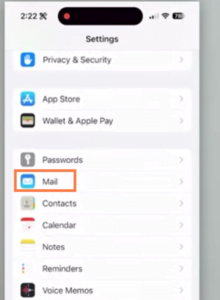
How To Delete Your Account on iPhone

Now, once you have clicked on mail, then tap on “accounts“. It will show all the accounts you are using on your iPhone. 
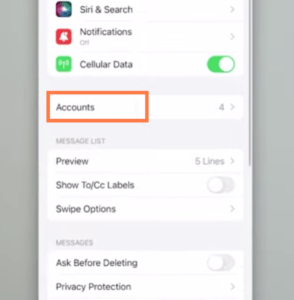
How To Delete Your Account on iPhone

STEP 2: Select Account 

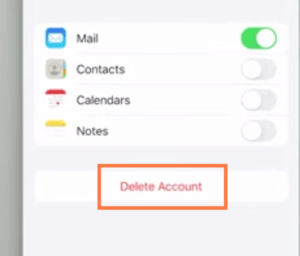
Select an account you prefer to delete. On your Gmail account, you can choose what to delete. Once you are done click on delete to remove the account from your iPhone. 
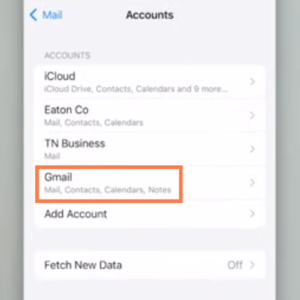
Gmail account
How To Delete Your Account on iPhone

How To Delete Your Apple ID Account on iPhone

You can delete your iCloud account through the first method. But we will show you the simplest and fastest method to do this.

  1. Go to your iPhone and open the “Settings app“. Tap on your Apple ID account to open.
  1. Now, scroll down to the bottom and click on “Sign Out” to remove your Apple ID account from your iPhone.
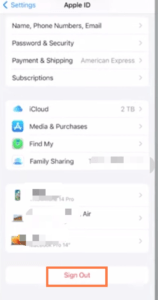
How To Delete Your Apple ID Account on iPhone

Note: The Apple ID account you deleted from your iPhone is still your account if you want to log in through the web or icloud.com.

Will I lose my files on my iPhone?

If you have backed up your files on iCloud, you will still have access to them once you’ve logged in back to the account. 

Will the removed account on my iPhone be permanently deleted?

The answer is no, it won’t be permanently deleted. You will still be able to login into the account if you choose to log back in.

For example, if you want to remove your Gmail account from your Android or iPhone, you can log in with the same Gmail account back to your mobile. Deleting your Gmail account from your iPhone is not deleting it from Google. Same as your iCloud account.

Also, if you have logged in on your laptop, the account will still be accessible on your laptop. 

Was this article helpful?
YesNo
How To iOS iPhone
Share. Facebook Twitter Pinterest LinkedIn Tumblr Email
Khael Eke
  • Website
  • X (Twitter)
  • Instagram
  • LinkedIn

Khael Eke is an experienced writer and blogger in the field of consumer technology with over 4 years of hands-on experience. He has been an editor at Techfyba.com from the outset and his focus and key interests are Android, Xiaomi products, Social Media applications, iOS and accessibility as well as consumer technology in general. Mike's articles will provide you with the practical solutions, knowledge and tools you need to stay ahead in the ever-evolving world of technology.

RECOMMEDNED

How To Hide Followers And Following on Instagram 2025 (3 Ways To Do It)

How To Download Your Instagram Data On Mobile And PC 

How To See Liked Comments On Instagram

Latest News

Switch From TikTok Personal To Business Account In 2026

How To Add A Linktree Link To TikTok 2026

What Does “TY” Mean On Snapchat?

How To Hide Followers And Following on Instagram 2025 (3 Ways To Do It)

Facebook X (Twitter) Instagram Pinterest
  • About Us
  • Contact Us
  • Privacy Policy
  • Terms and Conditions
  • Cookie Policy
© 2026 Techfyba. All right reserved.

Type above and press Enter to search. Press Esc to cancel.