


If you’ve logged in to your Instagram account on a public device, working place or through a friend’s phone. But may have found it difficult to log out other devices on Instagram
Just like other social media apps, Instagram also sends alert notifications when your account is logged in to another device. However, if you have previously logged in with a device and remained logged in, you will not receive any message alert.
Moreover, it’s important to note that Instagram’s alert system is a useful tool to keep your account secure.
Additionally, if you turn off your Instagram security login alerts, you will not receive an alert when someone logs in to your account from another device.
To keep your account safe from any fraudulent activities you need to check if your security login alerts are turned on.
Whether you’ve lost your phone, want to revoke access to an old device, or simply want to ensure your account’s security. Learning how to log out of all devices on Instagram can be useful.
In this article, we will explore how to log out other devices on Instagram.
How To Log Out All Devices On Instagram
Login to Instagram
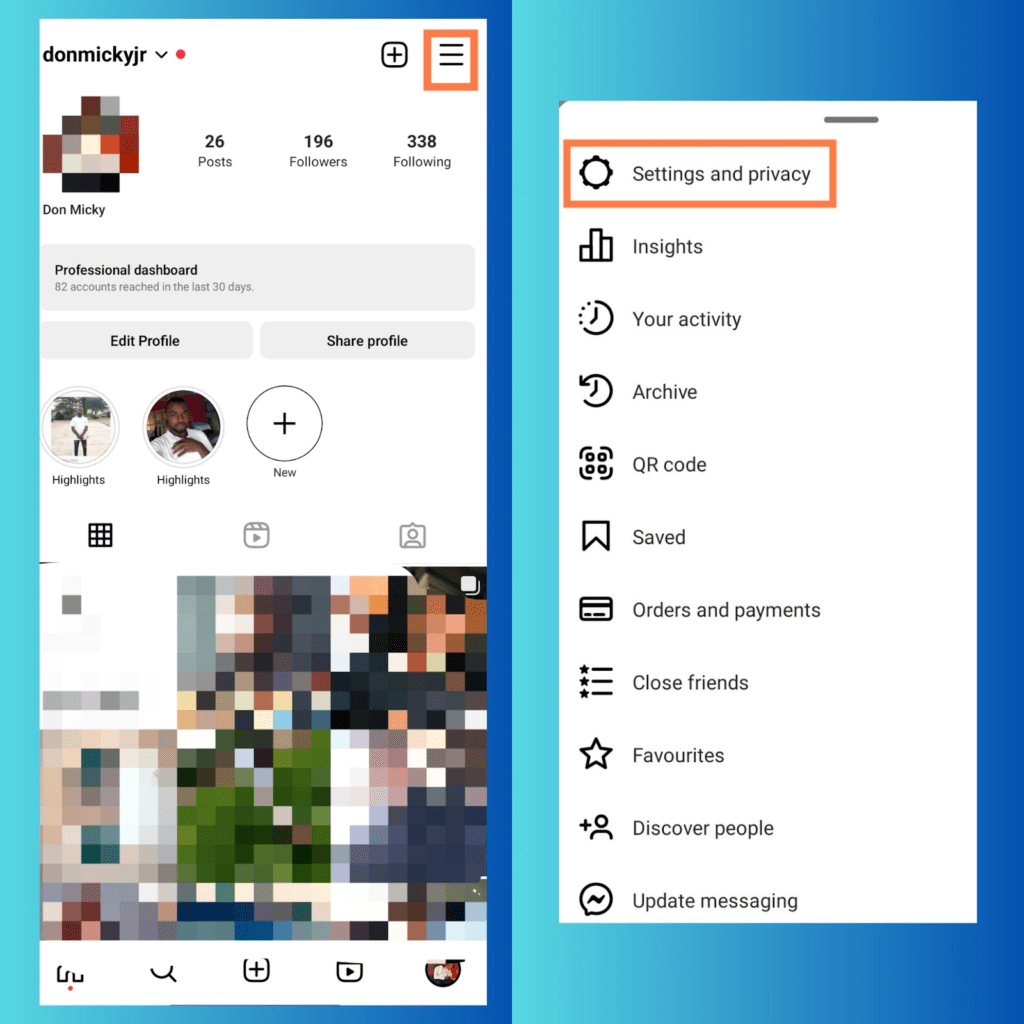
Open the Instagram app on your mobile device. Go to the profile dashboard.
Settings & Privacy
Tap the three horizontal lines at the top right of your profile dashboard. Then, select Settings & Privacy.
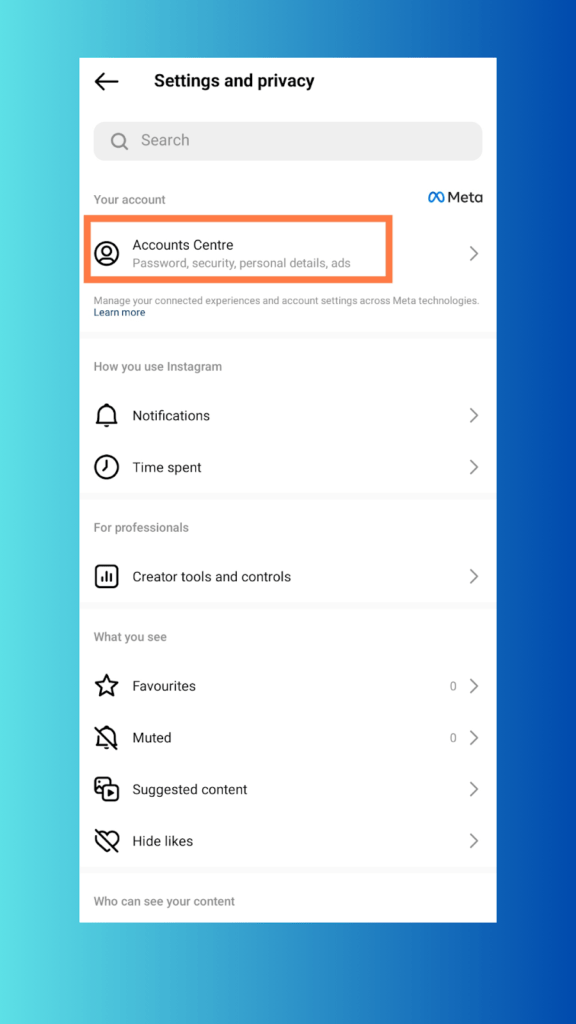
Accounts Centre
Select Accounts Centre to manage all your account activities.
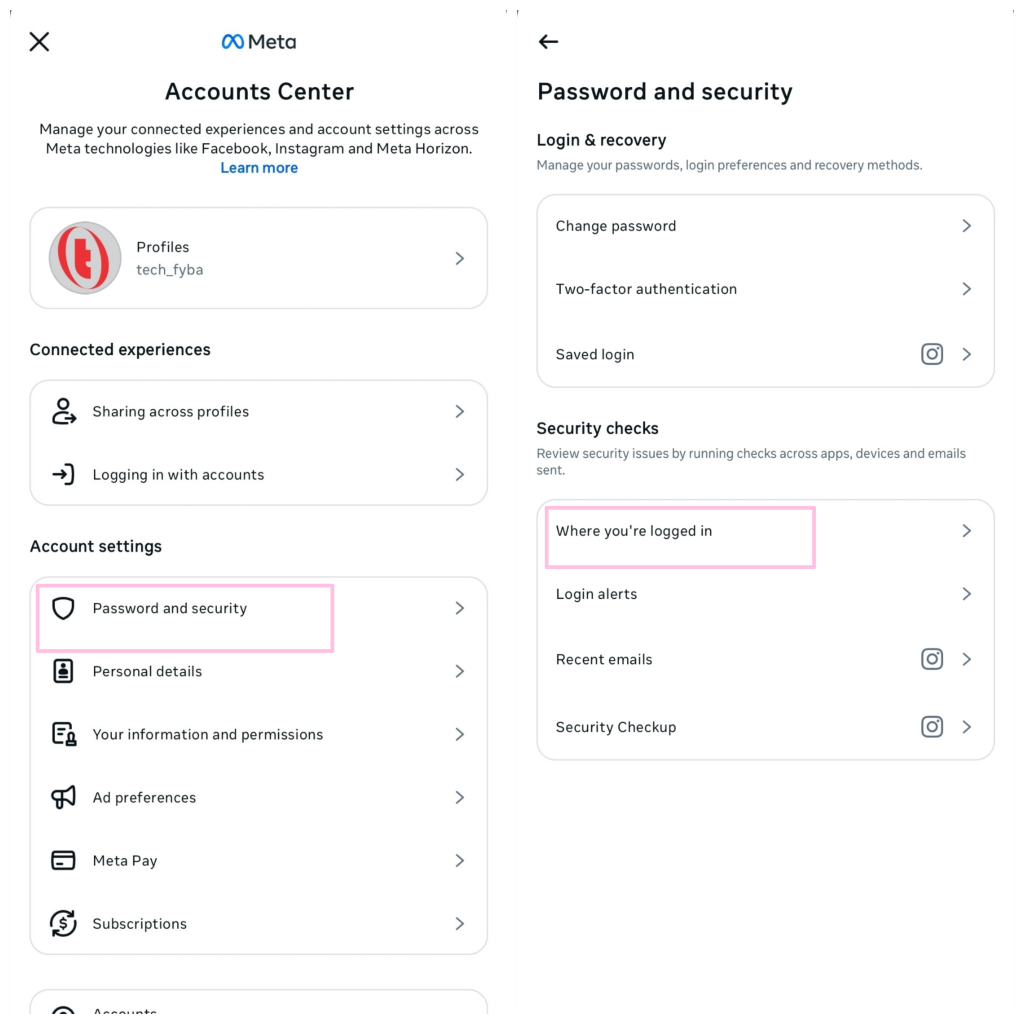
Password and Security
Click on password and security. Under security checks, select where you’re logged in. Then, select your Instagram account.
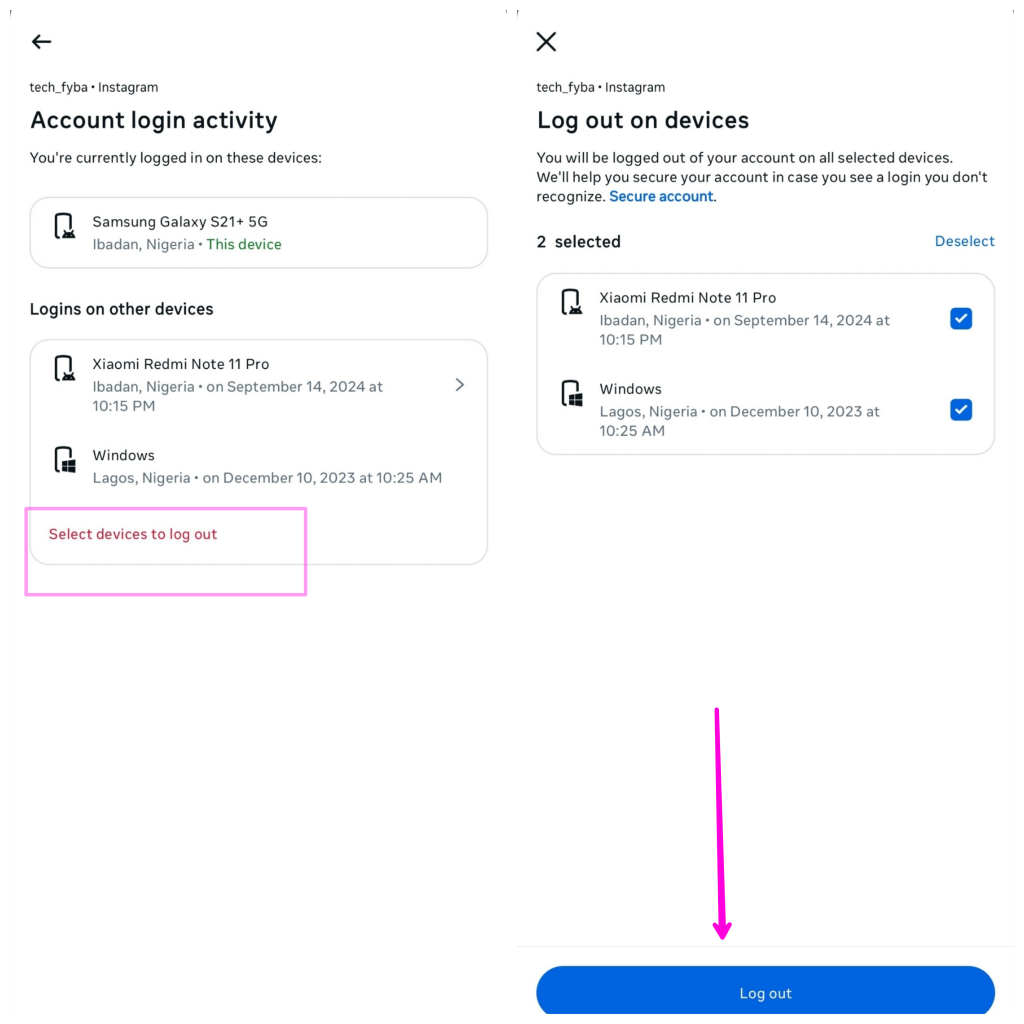
You will see the number of devices that are logged into your account. Select the accounts you want to log out. Enter your password and log out of the selected devices.
Change Password
Another way to log out of other devices on Instagram is to select the devices you want to remove from your account. Instead of logging out, click on “Secure account” to change your Instagram password. This will automatically log out other devices from your Instagram account.
If you have logged all the devices out and still not sure whether your account is safe, then, the alternate methods you should employ is updated your password, enable 2fa and check is any third party profile have access your Meta account.
How to Update Your Password on Instagram
Open the Instagram app and head on to your profile dashboard »»» then, click on More Options icon (the three horizontal lines) at the top right corner of the screen.
Next, click on »»» Account Centre. And under the account settings tab tap on Password and Security, then select »»» Change Password.
If you have multiple profiles, select the account you want to change the password.
Next, is to enter your current password and below it is the section to enter your new password. Now, »»» check the log out other devices box.
Final step, is to click on »»» Change Password button. And Instagram will update your new password.
Conclusion
It’s always good to run a security check on your account to prevent your Instagram account from fraudulent activities. We hope this guide helps you resolve this issue.
